![InteDashboard_Logo_V3.png]](https://help.intedashboard.com/hs-fs/hubfs/Branding/Logo/InteDashboard%20Logo%20(No%20Tagline)/InteDashboard_Logo_V3.png?width=250&height=63&name=InteDashboard_Logo_V3.png)
This Guide is for:
- Super Admin
- Admin Teacher (Full-Access)
Steps on How to Add Instructor-Users to your InteDashboard Account.
Step 1 – Click the button “People” on the left-side navigation.
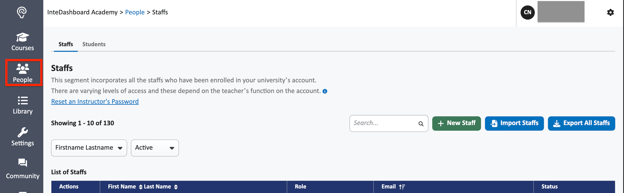
Step 2 – Click on the blue button “+Import Staffs” on the top-right of the screen.

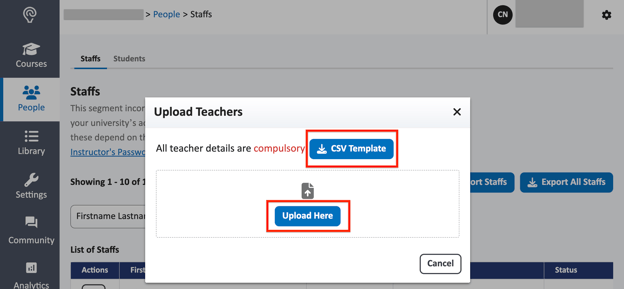
Step 3 – Download and fill out the CSV template.
- First Name – (required) This is the first name of the Instructor.
- Last Name – (required) This is the last name of the Instructor.
- Email – (required) This is the email address which the Instructor is required to sign in with (directly and/or through your LMS).
- Is Admin – Make this teacher an Admin Teacher (has the ability to create and manage Teachers)
- When “Yes” is written, then the newly added instructor will have the ability to add other Instructor-users.
- When “No” is written or left blank, then the newly added instructor will not have the ability to add other Instructor-users.
- Express Sign in – Give this teacher access to use the express sign in feature
- When “Yes“ is written, this allows the newly added instructor to use the express sign in functionality. Please note that the Express Sign-in is designed for ad hoc faculty development sessions and to run trainings and workshops. (Not for normal classroom usage).
Step 4 – Upload the CSV template.
- Click on the blue button “Upload Here” bottom.
- Select the CSV template to upload. Click the blue “Upload” button to complete the process.
- You will see a confirmation message saying "Your action has succeeded" at the right-hand top corner of your dashboard.
NOTE:
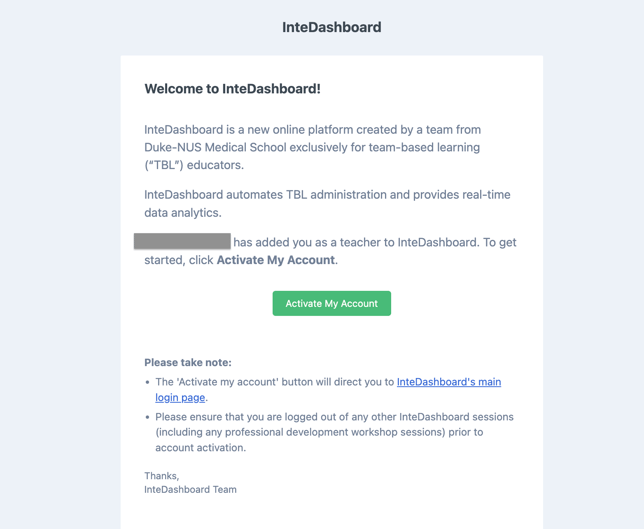
- Once an instructor is invited to use InteDashboard, they will get an email to activate their account, prompting them to build a new user profile by setting a password.
- The account which the Instructor creates will not have any courses in it.
- You can then see your added Instructors in the Teachers page and see who has activated (Status: Active) and who hasn’t (Status: Invite Sent).